
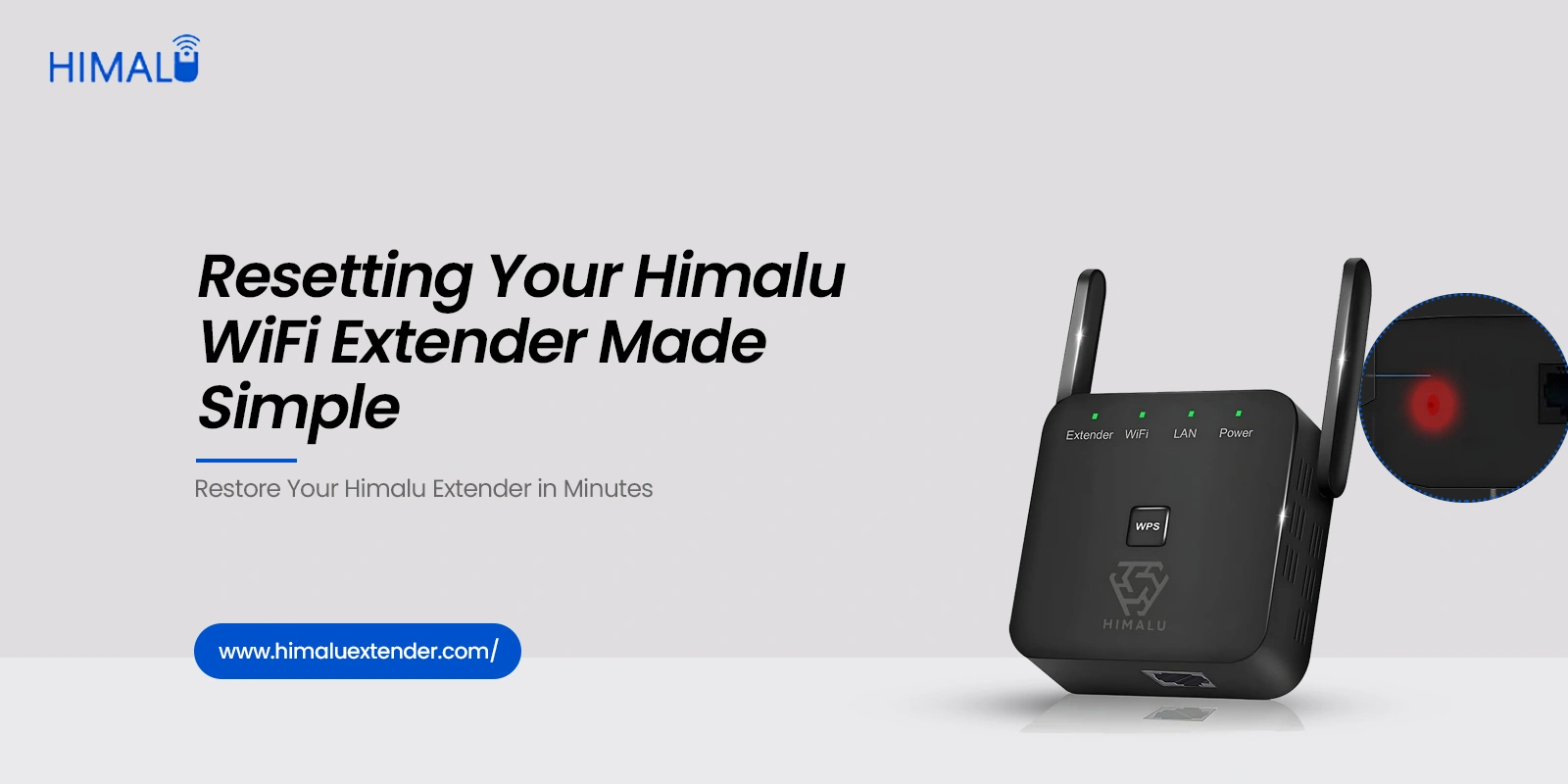
WiFi extenders are only as good as they are connected. If it stops connecting or faces issues that aren’t resolvable, you will need to follow the extender reset process. A proper Himalu WiFi extender factory reset can bring your extender back to life in no time. However, learning the right steps to do that is important.
Whether you are dealing with setup related issues, weak connectivity issues, or configuration related errors, knowing the right steps to reset your Himalu extender can help save time and frustration. This blog will walk you through the right steps for the Himalu WiFi Extender reset process so you can regain access to the internet in no time.
How can Himalu WiFi Repeater Reset Help?
There are a number of real-world applications where a Himalu WiFi repeater reset is required. Most of us do not think about a reset until something goes wrong, and when WiFi goes wrong, it does so at the worst possible time. You would require a Himalu WiFi extender factory reset in the following situations:
- You have recently changed the WiFi network name or password of your router.
- The Himalu WiFi extender indicates that it is connected, but you are unable to access the internet.
- The installation process has been interrupted, and the device is in a state of limbo.
- Network range of the Himalu WiFi extender has reduced despite correct positioning.
- You have lost the password to the admin dashboard.
Sometimes, issues with the configuration can add up over time. A fresh reset of the Himalu extender helps to start everything from scratch and removes any underlying bugs that can’t be removed through troubleshooting. It’s kind of like restarting your phone when it begins to act funny.
Where is the Reset Button on Himalu WiFi Extender?
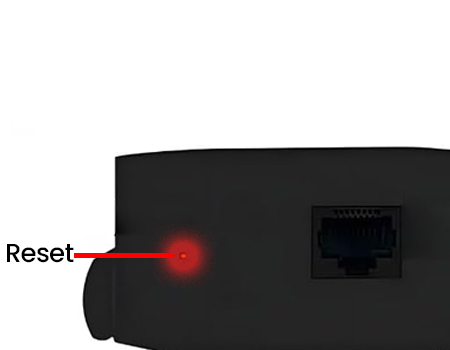
One of the most common questions is: Where is the reset button on the Himalu WiFi extender? For most Himalu WiFi extenders, the reset button is small and recessed to avoid accidental presses. You can usually find it at:
- On the side panel
- On the bottom edge
- Sometimes near the Ethernet port
It is usually marked “Reset” or “RST.” Because it is a pinhole reset button, you will need a paperclip, SIM eject tool, or thin pin to press it.
Do not mistake it for the WPS button. They are two different buttons. The WPS button will not reset the Himalu WiFi extender.
How to Reset Himalu WiFi Extender (Step-by-Step)
If you are wondering, “How do I reset my Himalu WiFi extender?” Here is the complete explanation.
Method 1: Himalu Extender Manual Reset
- This is the general way to reset your Himalu WiFi extender manually.
- Make sure that your extender is properly connected to the power source and is turned on.
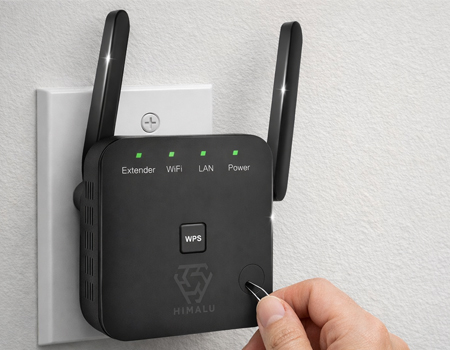
- Find the reset hole on your extender.
- Push the paper clip into the hole.
- Press the button in the hole for 10-15 seconds.
- Observe the LED lights, which might blink, turn off for a short while, and then flash rapidly.
- Let go of the button when the lights start acting differently.
- Wait for the extender to reboot (this might take a maximum of 2 minutes).
- This is the end of the Himalu wifi extender reset process. The device will be set to default settings.
- Do not remove the power cord during this process. This might cause firmware problems.
- Press the button for 10-15 seconds.
Method 2: Himalu Extender Hard Reset
If the basic reset does not work, it is time to do a Himalu extender hard reset.
This is particularly helpful in the following situations:
- The device is frozen.
- The extender is not responding at all.
- The first reset attempt has failed.
Steps:
- Make sure the device is turned on.
- Press and hold the reset button for 20-30 seconds.
- Do not let go of the reset button yet.
- Wait until all the LED lights blink at the same time or in a cycle.
- Let the extender fully reboot.
A Himalu extender hard reset will compel the device to erase more advanced system configurations.
Himalu Extender Reset After Setup Failure
If you experienced a setup issue earlier, a Himalu extender reset after setup failure is often necessary before you try to reset the device again.
Failures during the setup process are normally a result of:
- Entering the wrong WiFi password
- Moving away from the router during the setup process
- Browser interruption or refresh
- Loss of power during the configuration process
- Weak signal from the router
During the interruption of the setup process, some configurations are saved within the device. This results in unusual behavior such as blinking lights.
What happens after Himalu Extender Factory Reset?
Once you reset your Himalu extender, the saved WiFi credentials will be erases. The extender will forget the previously connected router and the custom SSID names will be removed. The admin login credentials will also return to default and security settings will revert to the factory mode as well.
Once the device is reset, the extender will broadcast its original default network name and you will need to reconfigure it by logging into the setup wizard. This is a usual process and the extender will not automatically connect to the old router. The setup process must be completed again.
Himalu WiFi Extender Reset and Reconnect
Here are some steps you can follow to reconnect your extender device:
- Plug the extender in a spot halfway between your router and the area where the signal is weak.
- Wait for it to turn on completely.
- Connect your phone or laptop to the extender’s default network.
- Open your browser and type in the default IP address for setup.
- Log in with the default password.
- Choose your home WiFi network.
- Type in the password for your WiFi network.
After this is done, the extender will sync to the router device and start extending the signal. If you experience repeated issues after reset process, the placement might be the problem and not the device itself.
How to set up Himalu extender after reset process?
You can set up your Himalu extender easily after the reset process is over. The process is simple and must be done carefully. Bring the extender closer to the area where your router is installed so it stays in the network coverage area.
Avoid thick walls and microwaves and other large meal surfaces. Double check the WiFi password spelling and wait till the device reboots fully before you test the connection. If you rush through the process, you may assume that the Himalu extender reset not working, when in real, the device just needs time to reconnect properly.
If you are facing issues like Himalu WiFi extender not resetting and more, here are some steps you can follow:
- Make sure the power to the extender is stable. Use another wall outlet if necessary.
- You have to press the reset button firmly and consistently. A brief press will not reset.
- Press the button for at least 15-30 seconds. Too many people press too soon.
- The Himalu extender reset procedure may require two tries.
- In some instances, the firmware is corrupted, which hinders the reset process. A Himalu extender firmware reset using the admin page may be helpful.
- If the Himalu WiFi extender not resetting, it is possible that the reset button is faulty. In some instances, the hardware may fail, which hinders the reboot process. At this point, replacement is the best option.